

Read the Qur'an
Browse the index, switch reading layouts, and open translation, tafsir, i'rab and word-by-word meaning.
The Qur'an index
Tap Qur'an in Quick access. Last read chips at the top take you back to where you stopped. Below them is a summary of what you have memorized.
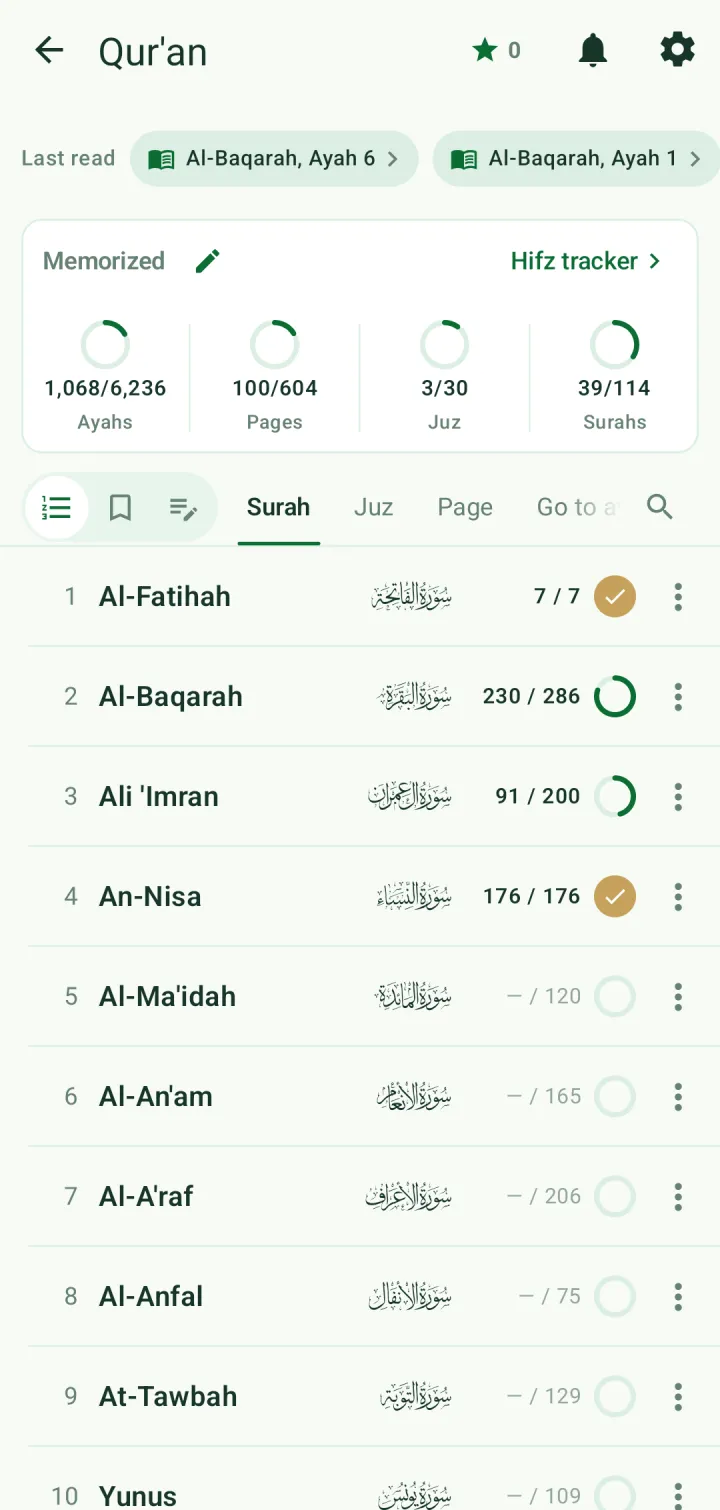
Browse by Surah, Juz or Page, or use Go to ayah. The icons on the left switch between the index, your bookmarks and your notes. The search icon searches the Qur'an.
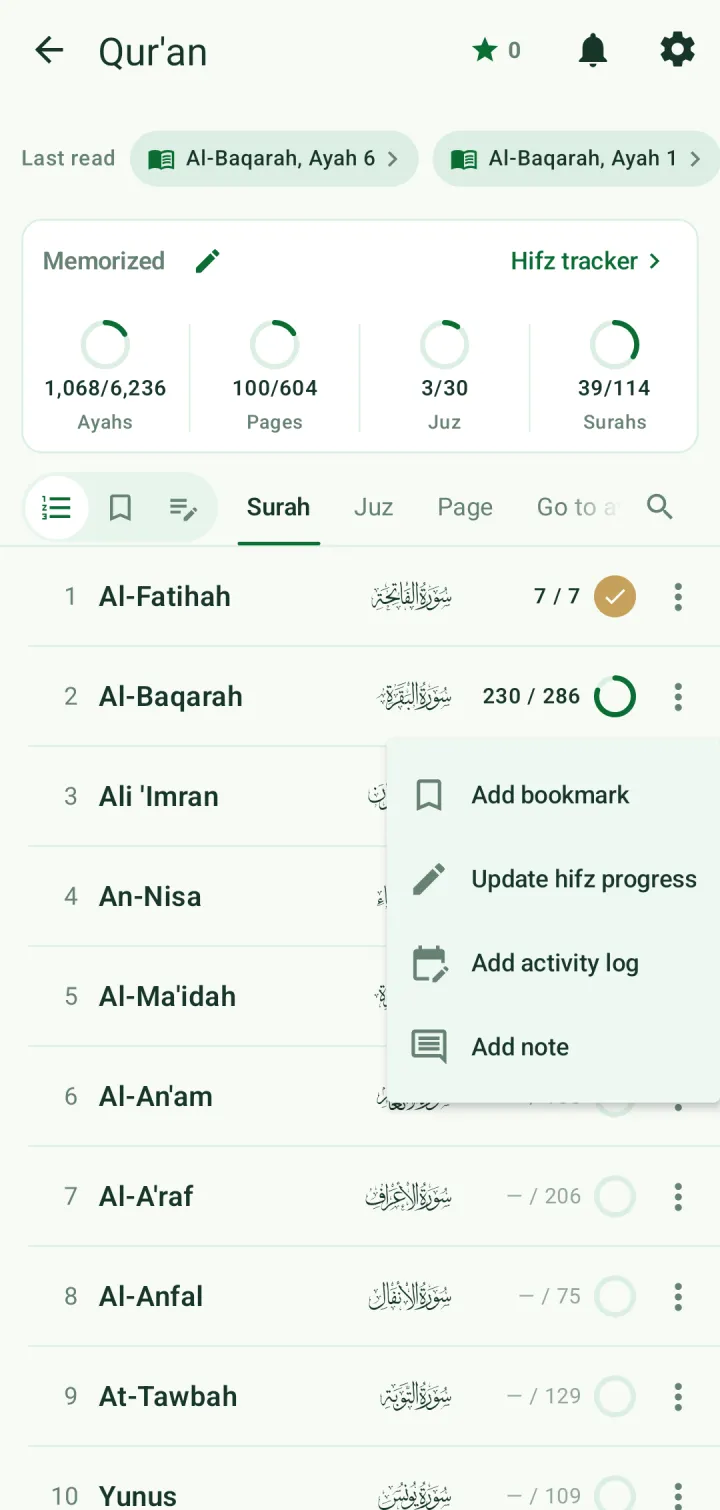
Tap a row to open the reader. The ⋮ at the end of a row lets you bookmark it, update your hifz progress, log an activity or add a note.
Choose a reading layout
The icon at the top right of the reader switches between three layouts.
Mushaf page image — the printed Madani page, just as it appears in a paper mushaf.
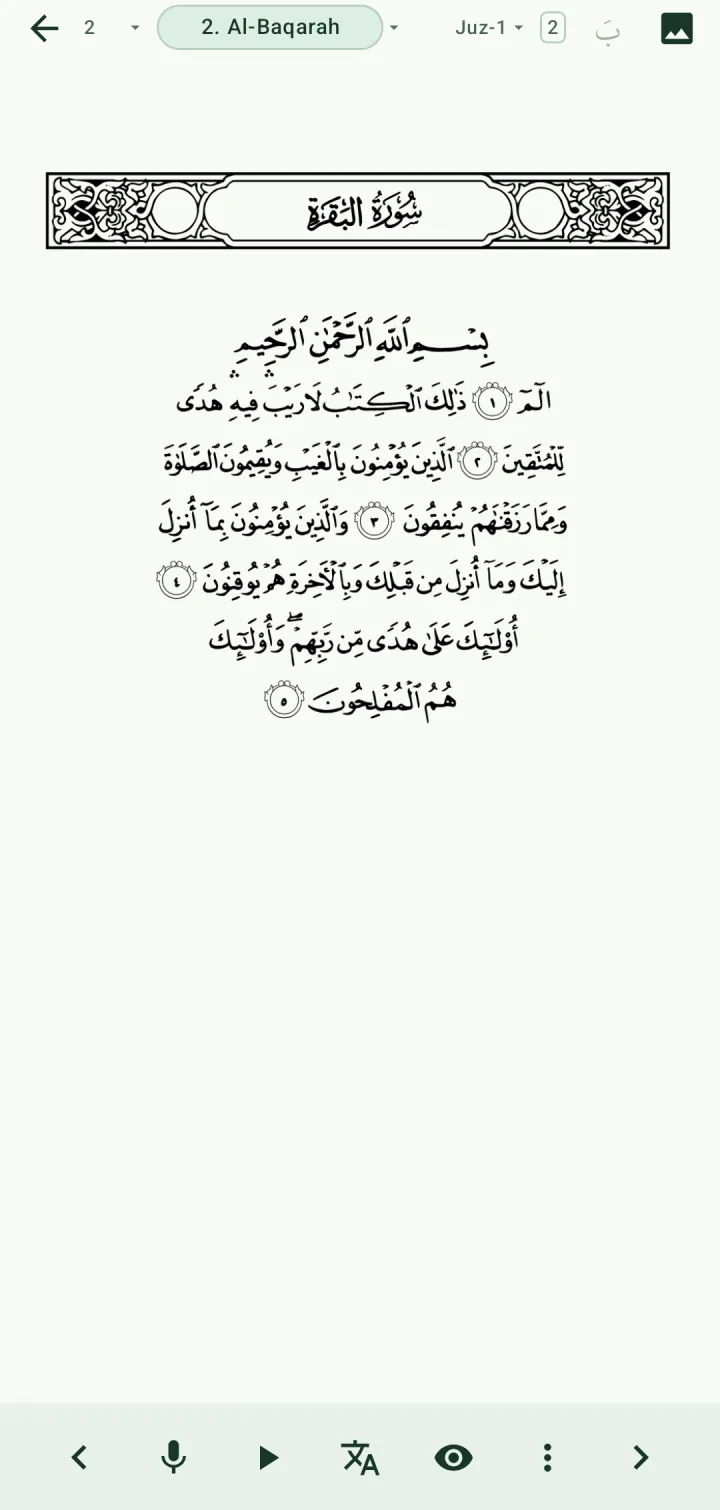
Mushaf text — the same page as text, so you can tap single words.
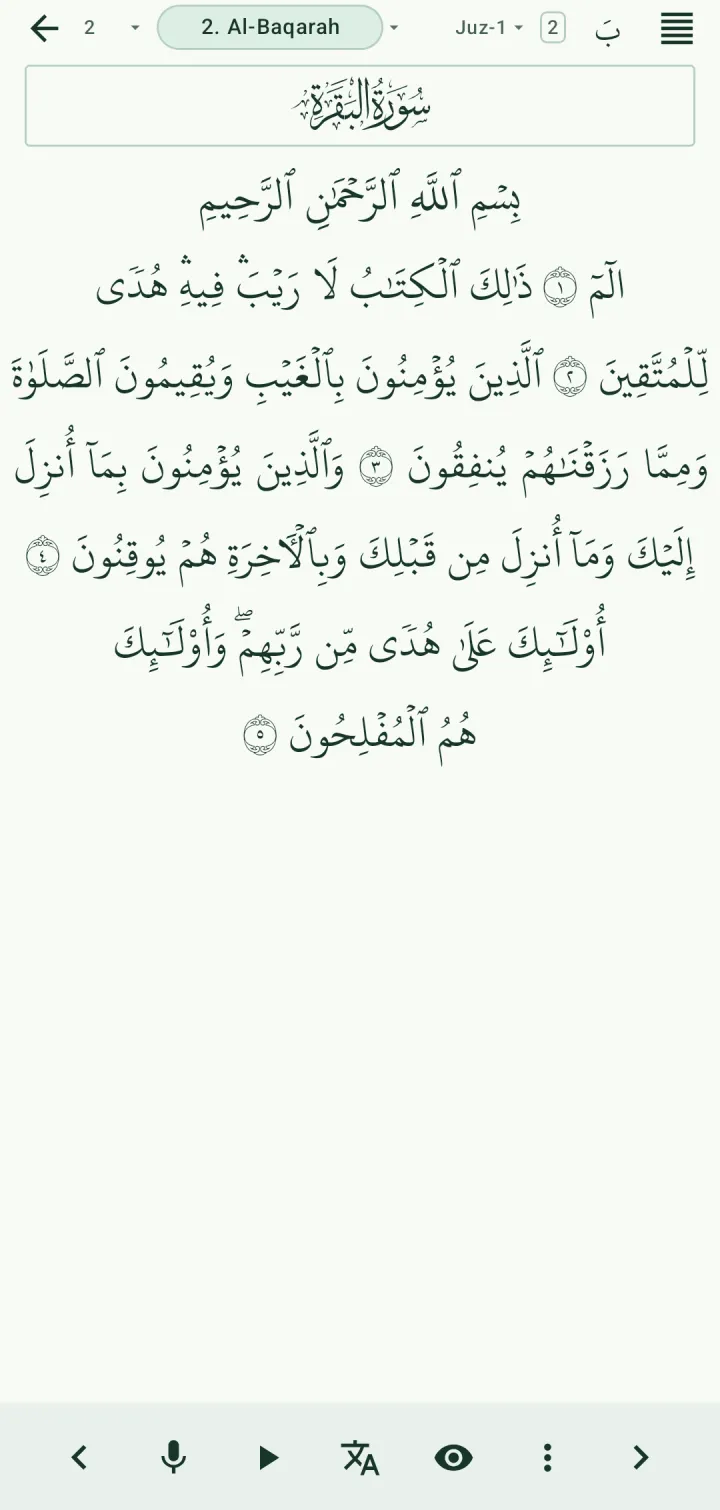
Ayah with translation — one ayah per card, with the translation below it.
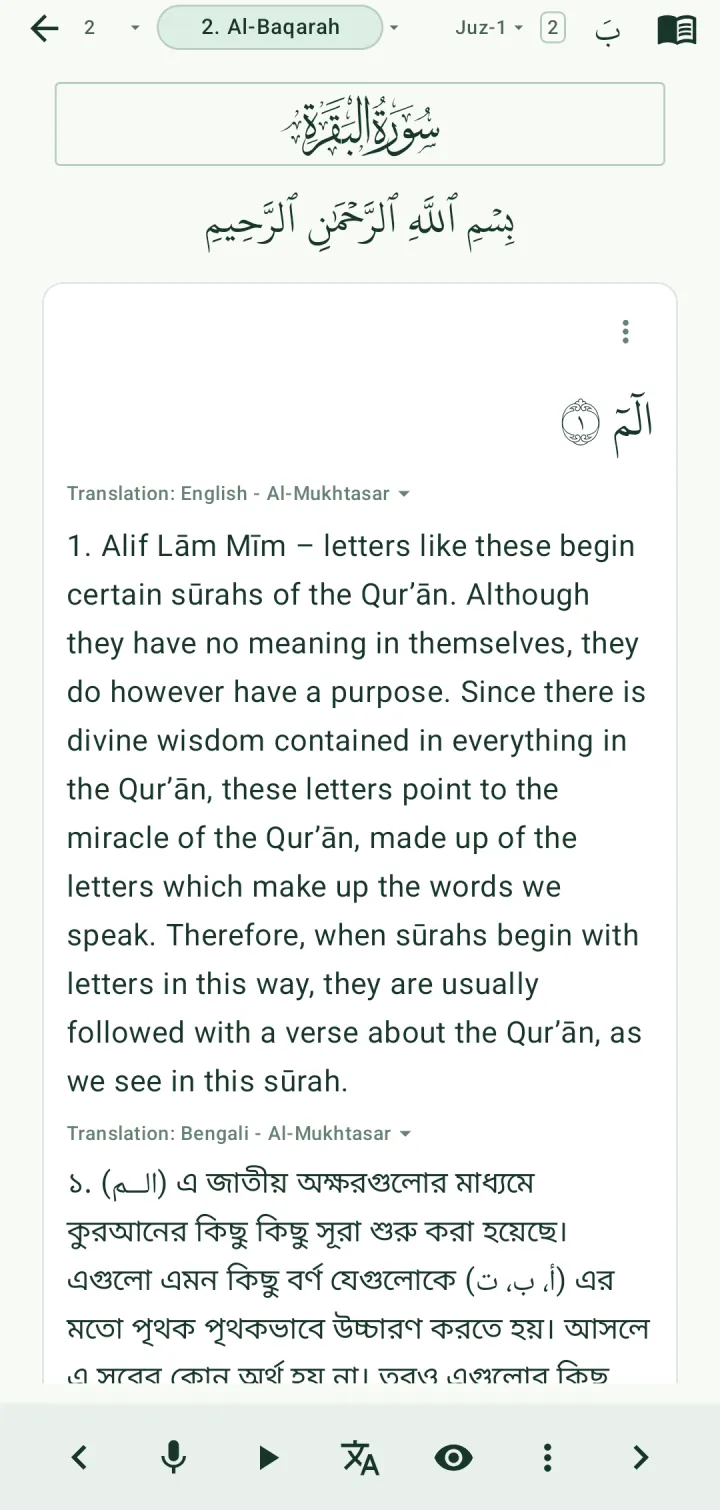
The top bar also shows the page, surah and juz. Tap any of them to jump elsewhere. The بَ button hides or shows the harakat.
Translation, tafsir and grammar for an ayah
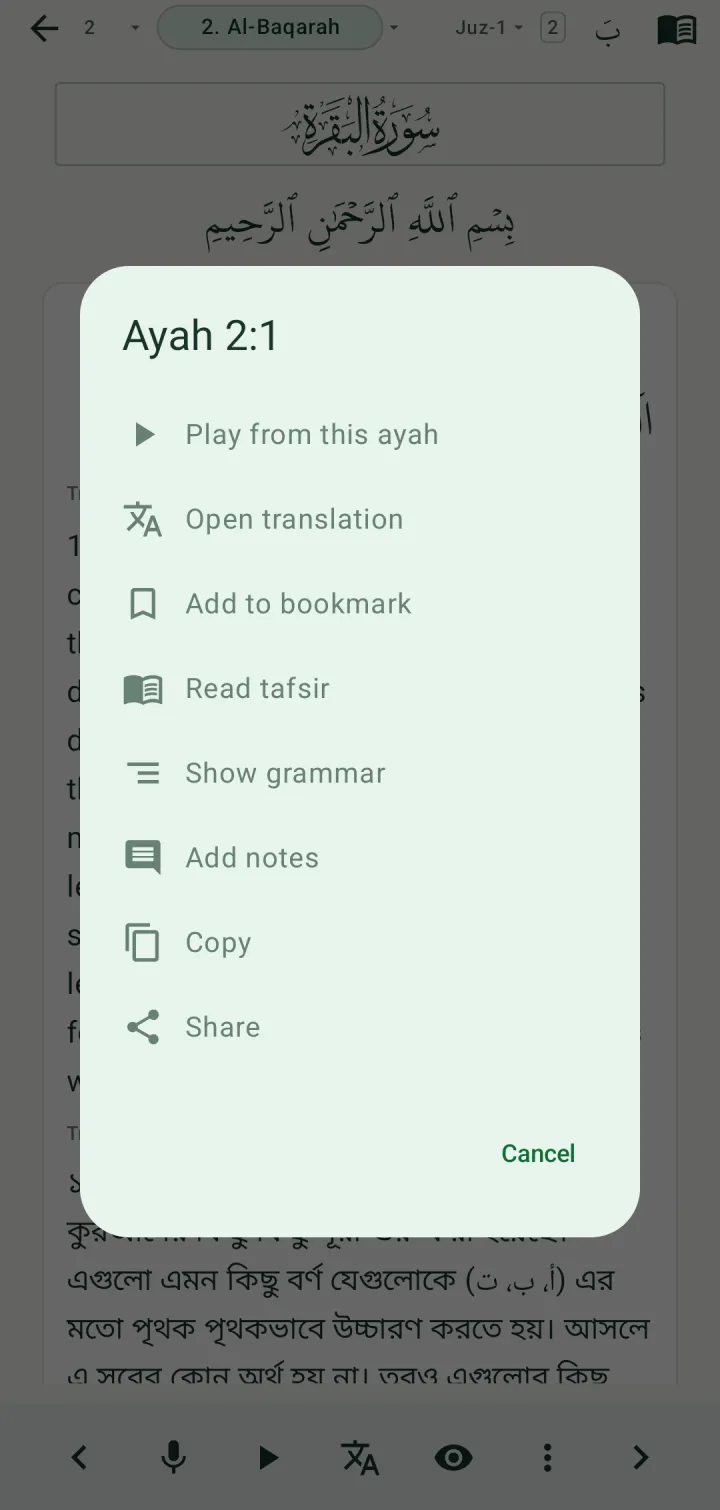
In the line-by-line layout, tap ⋮ on an ayah for its actions: play from here, open the translation, bookmark, read tafsir, show grammar, add a note, copy or share. Long-pressing the ayah number opens the same actions.
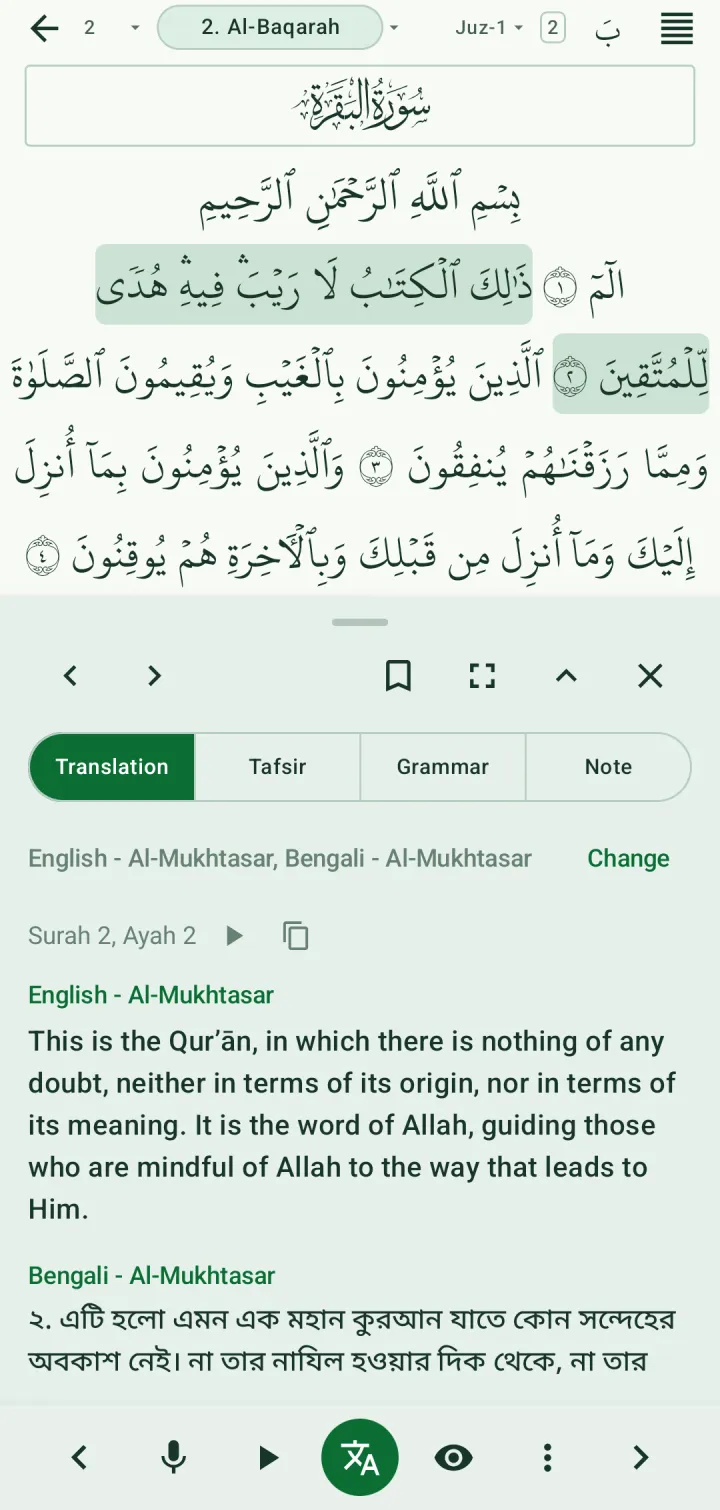
The translation button in the bottom bar opens the ayah sheet. Its tabs are Translation, Tafsir, Grammar (i'rab) and Note. Use the arrows to move between ayahs, and the other buttons to bookmark, go full screen, move the sheet to the top, or close it.
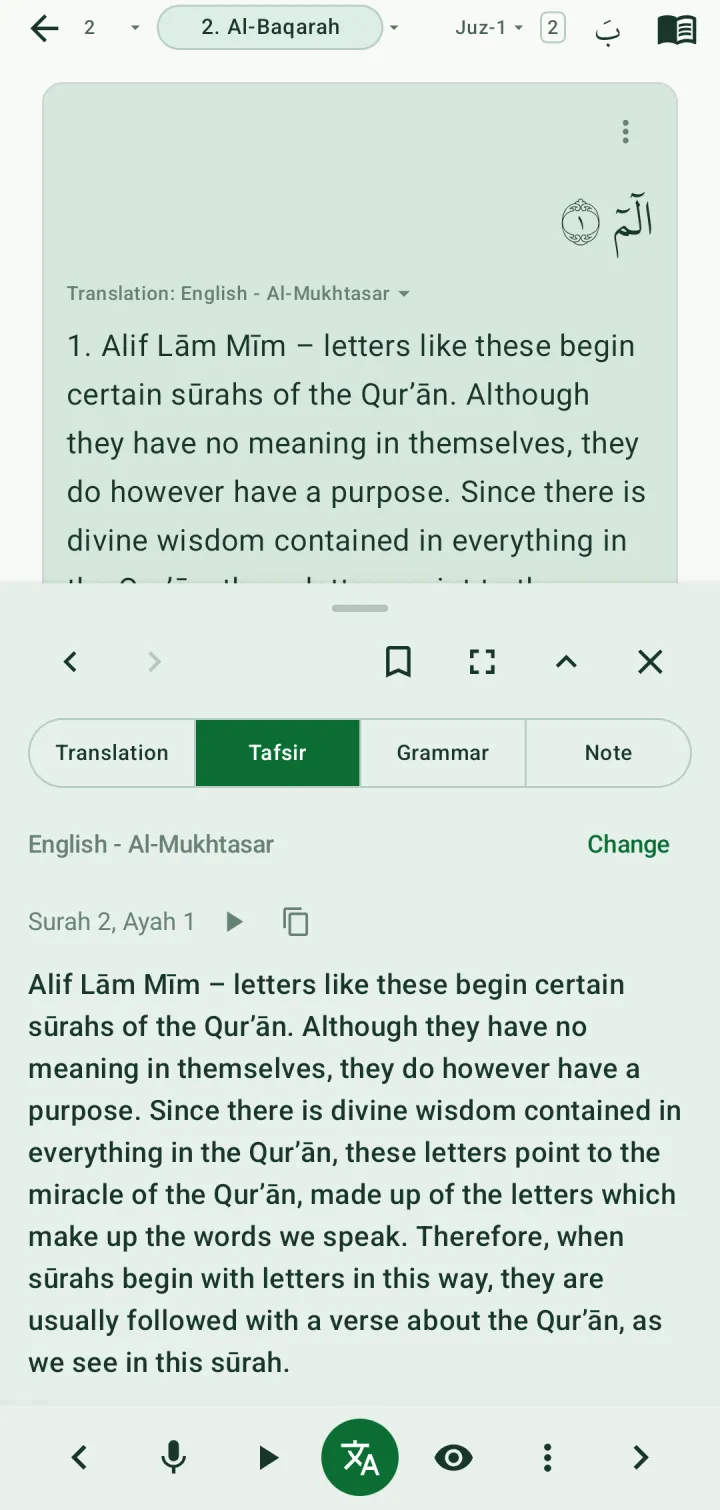
The Tafsir tab shows the tafsir you have chosen for that ayah.
The Grammar tab shows the ayah's i'rab — its Arabic grammatical analysis.
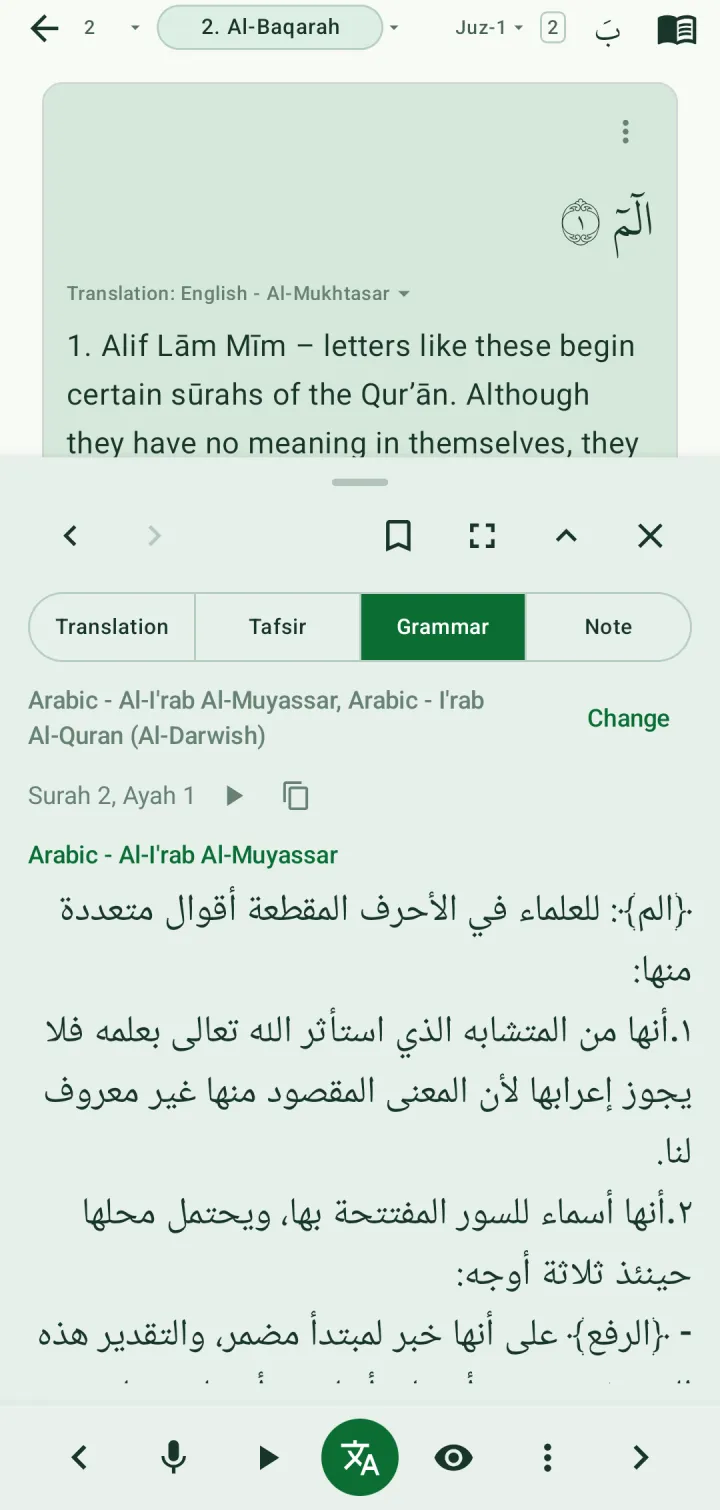
Change the translation, tafsir or grammar source
Each tab names its source at the top. Tap Change to pick another. Sources marked (Download) are fetched once and then work offline. Tafsir and grammar can also be set to None.
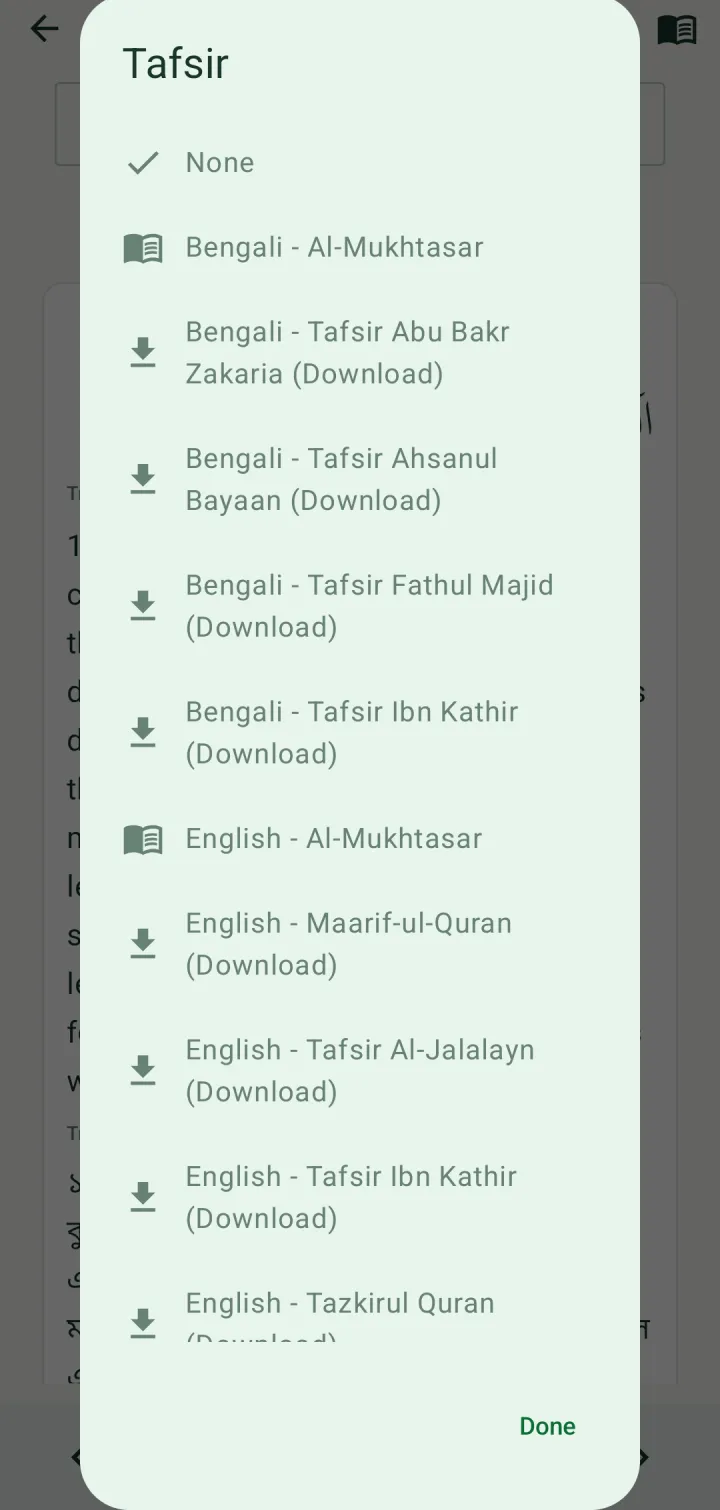
You can show several translations at once, for example English and Bangla.
Word-by-word meaning
In the mushaf text layout, tap a word to select it, then tap the translation button. The sheet then shows that word — its meaning and its grammar — and the play button plays that word alone.
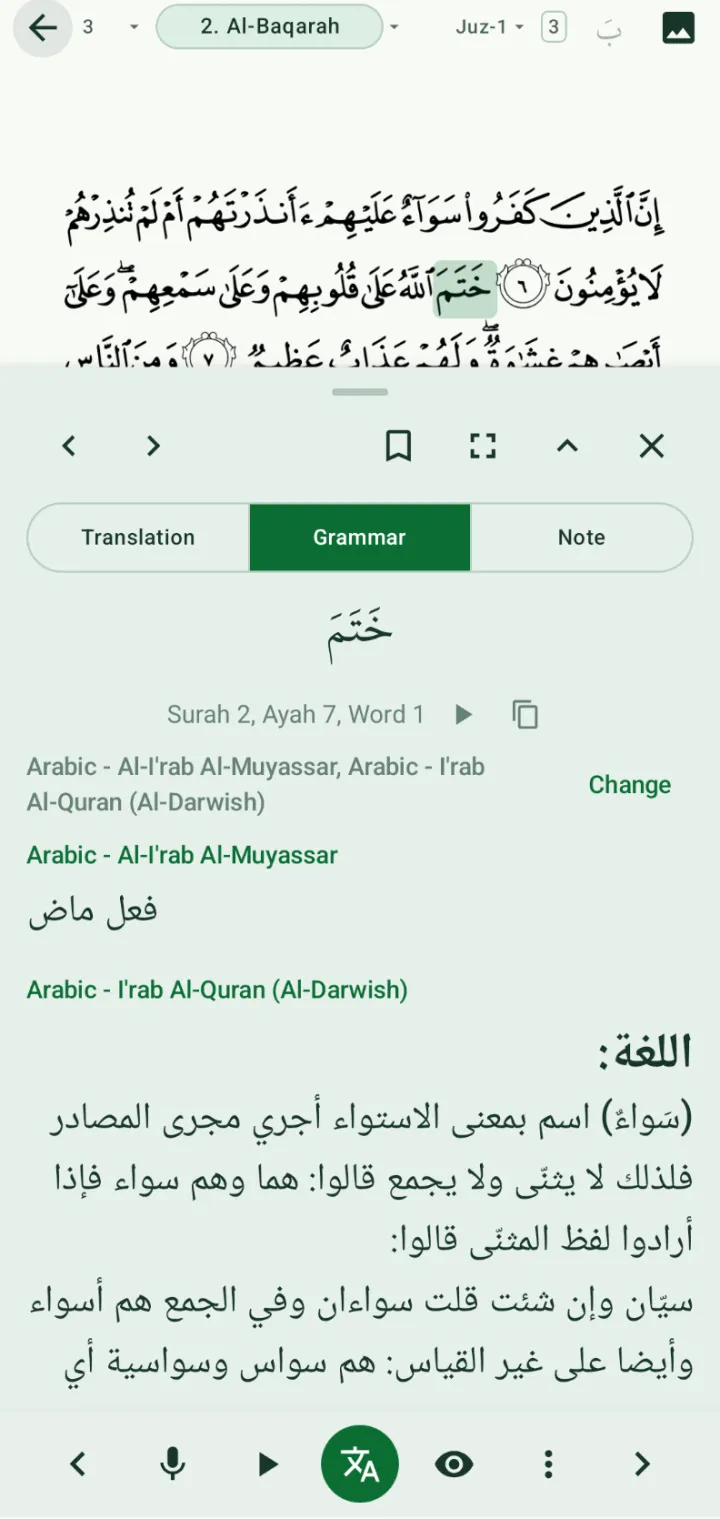
To show word-by-word meaning beside every ayah, turn on Show word by word translation with ayah in the reader settings, and choose its language.
Reader settings
Tap ⋮ in the bottom bar to zoom in or out, or to open the reader settings. There you can set the layout, page navigation, line-by-line font size, and what a tap on an ayah does by default. You can also keep the screen on while reading.
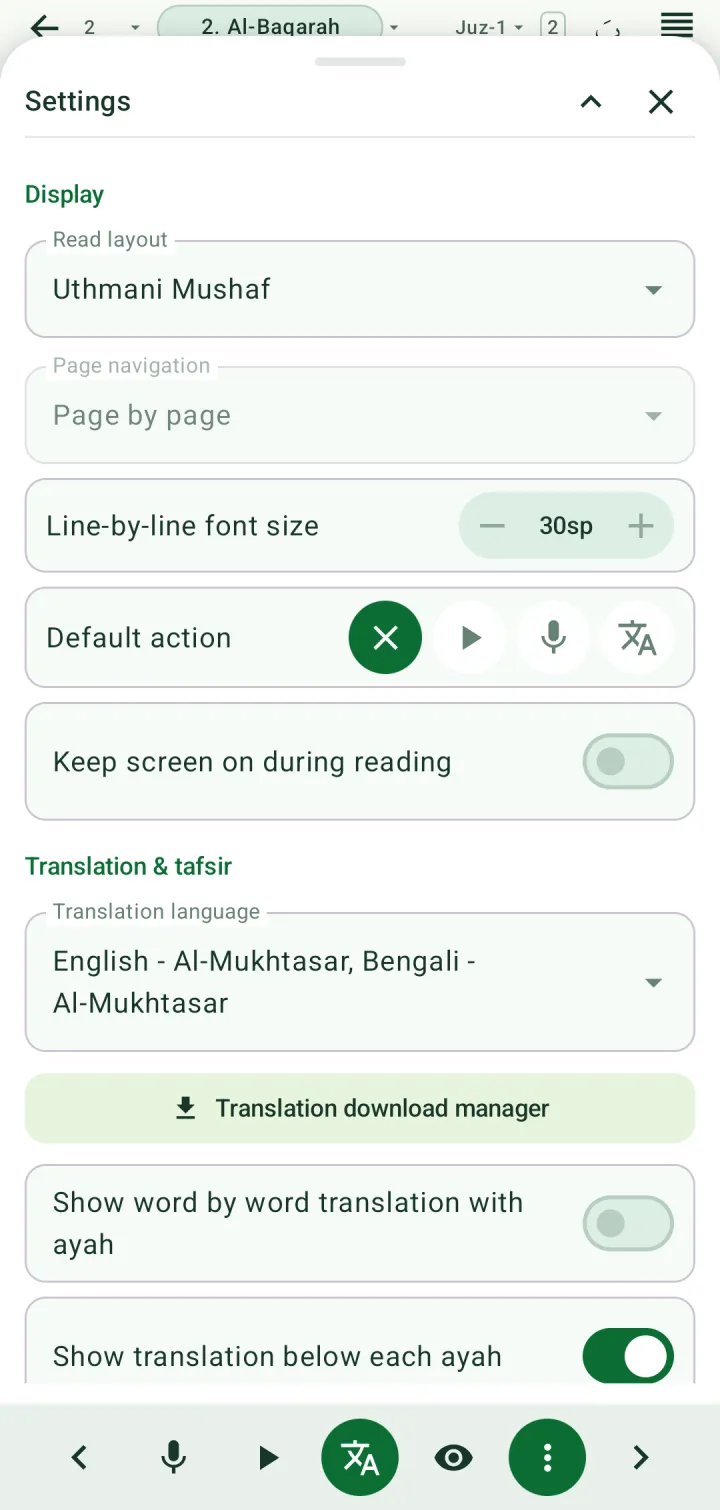
The same options, with download managers for translations, tafsir, i'rab and mushaf images, are under Quran reader defaults in the main Settings.